
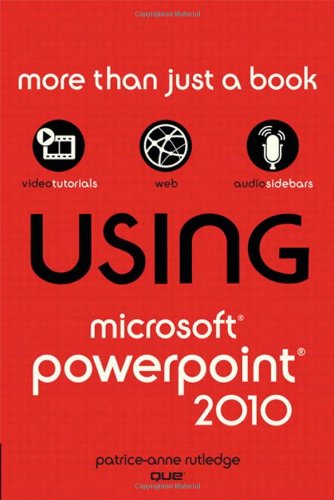
Using Microsoft PowerPoint 2010 1st Edition by Patrice-Anne Rutledge ISBN 978-0789742940 0789742942

Original price was: $50.00.$35.00Current price is: $35.00.
Using Microsoft PowerPoint 2010 1st Edition by Patrice-Anne Rutledge – Ebook PDF Instant Download/Delivery: 978-0789742940, 0789742942
Full download Using Microsoft PowerPoint 2010 1st Edition after payment
Product details:
ISBN 10: 0789742942
ISBN 13: 978-0789742940
Author: Patrice-Anne Rutledge
Get comfortable with PowerPoint 2010. Don’t just read about it: See it and hear it with step-by-step video tutorials and valuable audio sidebars delivered through the Free Web Edition that comes with every USING book. For the price of the book, you get online access anywhere with a web connection–no books to carry, updated content, and the benefit of video and audio learning. Way more than just a book, this is all the help you’ll ever need–where you want, when you want!
Learn Fast, Learn Easy, Using Web, Video, and Audio
Show Me video walks through tasks you’ve just got to see–including bonus advanced techniques
Tell Me More audio delivers practical insights straight from the experts
Patrice-Anne Rutledge provides practical, approachable coverage that guides you through mastering the core features and techniques needed to create compelling presentations. New features include
* Animation Painter-Apply the formatting of one animation to another animation. This button works in much the same way as the Format Painter button.
* Presentation Sections-Divide your presentation into logical sections to simplify navigation and organization.
* Video Editing-Use professional video editing and formatting tools directly in PowerPoint without the need for an external application.
* Screenshot Captures-Incorporate screenshots directly from PowerPoint.
* Backstage View-Perform common file-related tasks such as creating, opening, saving, sharing, and printing presentations in fewer steps.
* Merge and Compare-Compare and reconcile multiple versions of the same presentation.
* Co-Authoring-Collaborate with others on the same presentation in realtime.
* Broadcast Slide Show-Broadcast your presentation to anyone on the web using either SharePoint Server 2010 or a free Windows Live account.
* Create a Video-Share your presentation with others as a high-definition, web-based, or mobile device video.
* Document Sharing-Share your document with colleagues real-time and communicate with them via instant messaging using Office Communicator 2007 R2.
* PowerPoint Web App-View and edit PowerPoint presentations on the web using the external PowerPoint web application.
In addition to these new features, PowerPoint 2010 also offers many enhancements:
* An enhanced Ribbon that is available across all Office applications
* More Office themes
* More SmartArt graphics
* Easier access to animation tools
* Enhanced slide transitions, including 3-D effects
* Numerous new image editing features
* Powerful editing tools for mathematical equations
* Improved notes printing
* Improved slide show recording functions
* Enhanced language and translation tools
Table of contents:
Chapter 1: Introducing PowerPoint 2010
Tell Me More Media 1.1 – Understanding What PowerPoint Can Do
Show Me Media 1.2 – Using the Ribbon Tabs
Show Me Media 1.3 – Using Backstage View
Show Me Media 1.4 – Understanding PowerPoint Views
Chapter 2: Creating a Basic Presentation
Tell Me More Media 2.1 – Understanding PowerPoint Presentations
Show Me Media 2.2 – Creating a Presentation from a Template
Show Me Media 2.3 – Adding Sections to Your Presentation
Show Me Media 2.4 – Saving a Presentation
Chapter 3: Customizing Themes and Backgrounds
Show Me Media 3.1 – Applying a New Theme
Tell Me More Media 3.2 – Customizing Themes
Show Me Media 3.3 – Customizing Theme Color Schemes
Show Me Media 3.4 – Applying and Customizing Backgrounds
Chapter 4: Working with Text
Show Me Media 4.1 – Inserting a Text Box
Tell Me More Media 4.2 – Formatting Text
Point-Counterpoint Media 4.3 – Using Text and Bullets: Is Less Really More?
Show Me Media 4.4 – Using WordArt
Show Me Media 4.5 – Running a Spelling Check
Chapter 5: Formatting and Organizing Objects, Slides, and Presentations
Show Me Media 5.1 – Pasting an Object
Show Me Media 5.2 – Using the Slide Sorter View
Chapter 6: Working with Tables
Tell Me More Media 6.1 – Understanding Tables
Show Me Media 6.2 – Inserting a Table
Show Me Media 6.3 – Inserting an Excel Spreadsheet
Show Me Media 6.4 – Formatting a Table
Outlining Presentations
Tell Me More Media 7.1 – Creating an Effective Presentation Outline
Show Me Media 7.2 – Modifying Your Outline
Show Me Media 7.3 – Inserting an Outline from Another Application
Reviewing Presentations
Tell Me More Media 8.1 – Understanding PowerPoint Reviewing Tools
Show Me Media 8.2 – Working with Comments
Show Me Media 8.3 – Comparing Presentations
Working with Images
Tell Me More Media 9.1 – Understanding PowerPoint Images
Show Me Media 9.2 – Inserting Clip Art
Show Me Media 9.3 – Creating a Presentation from a Photo Album
Show Me Media 9.4 – Modifying Images
Working with Shapes
Show Me Media 10.1 – Inserting Shapes
Show Me Media 10.2 – Applying a Shape Quick Style
Show Me Media 10.3 – Applying Shape Effects
Working with SmartArt
Tell Me More Media 11.1 – Understanding SmartArt
Show Me Media 11.2 – Inserting a SmartArt Graphic
Show Me Media 11.3 – Using SmartArt Design Tools
Show Me Media 11.4 – Formatting SmartArt Graphics
Working with Charts
Tell Me More Media 12.1 – Understanding Charts
Show Me Media 12.2 – Inserting a Chart
Show Me Media 12.3 – Inserting a Chart from Excel
Show Me Media 12.4 – Modifying and Formatting Charts
Chapter 13: Working with Audio and Video
Tell Me More Media 13.1 – Working with Audio and Video
Show Me Media 13.2 – Inserting a Video Clip from Your Computer
Show Me Media 13.3 – Formatting Audio and Video Clips
Show Me Media 13.4 – Creating a Video from a PowerPoint Presentation
Chapter 14: Working with Animation and Transitions
Tell Me More Media 14.1 – Understanding Animation and Transitions
Show Me Media 14.2 – Setting Slide Transitions
Show Me Media 14.3 – Applying Animation to Objects
Chapter 15: Presenting a Slide Show
Tell Me More Media 15.1 – Preparing for a Polished Delivery
Show Me Media 15.2 – Setting Up a Show
Show Me Media 15.3 – Viewing Your Show
Tell Me More Media 15.4 – Overcoming the Fear of Public Speaking
Tell Me More Media 15.5 – Managing the Backchannel During Your Presentation
Show Me Media 15.6 – Broadcasting a Slide Show
Chapter 16: Creating and Printing Presentation Materials
Tell Me More Media 16.1 – Ensuring a Smooth Printing Process
Show Me Media 16.2 – Preparing to Print
Chapter 17: Sharing and Collaborating on Presentations
Tell Me More Media 17.1 – Exploring Ways to Share and Collaborate in PowerPoint 2010
Show Me Media 17.2 – Protecting Your Presentation
Show Me Media 17.3 – Inspecting Your Presentation
Tell Me More Media 17.4 – Setting Ground Rules for Successful PowerPoint Collaboration
Show Me Media 17.5 – Saving to the Web
Chapter 18: Working with Hyperlinks and Action Buttons
Show Me Media 18.1 – Inserting a Hyperlink to an External Website
Show Me Media 18.2 – Inserting a Hyperlink to Another Slide in Your Presentation
Show Me Media 18.3 – Using Action Settings
Chapter 19: Customizing PowerPoint
Show Me Media 19.1 – Working with the Quick Access Toolbar
Show Me Media 19.2 – Customizing the Ribbon
Show Me Media 19.3 – Creating a Custom Layout
Chapter 20: Accessing PowerPoint on the Web and Mobile Devices
Show Me Media 20.1 – Adding Files to SkyDrive
Show Me Media 20.2 – Creating a New Presentation in SkyDrive
Show Me Media 20.3 – Editing a Presentation in the PowerPoint Web App
Chapter 21: Extending PowerPoint with Third-Party Tools
People also search for:
using microsoft powerpoint
advanced techniques using microsoft powerpoint
advantages of using microsoft powerpoint
importance of using microsoft powerpoint
disadvantages of using microsoft powerpoint
Tags: Patrice-Anne Rutledge, Using Microsoft, PowerPoint 2010