
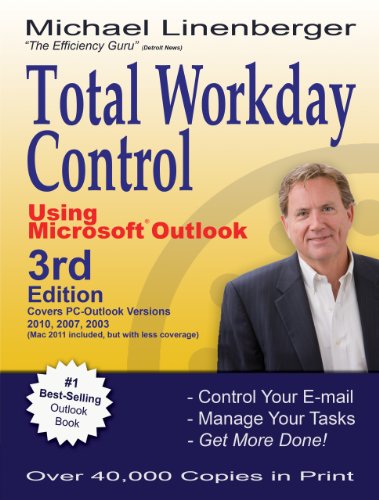
Total Workday Control Using Microsoft Outlook 3rd Edition by Michael Linenberger ISBN 0974930466 978-0974930466


Original price was: $50.00.$35.00Current price is: $35.00.
Total Workday Control Using Microsoft Outlook 3rd Edition by Michael Linenberger – Ebook PDF Instant Download/Delivery: 0974930466, 978-0974930466
Full download Total Workday Control Using Microsoft Outlook 3rd Edition after payment
Product details:
ISBN 10: 0974930466
ISBN 13: 978-0974930466
Author: Michael Linenberger
In this new third edition, Linenberger updates his longtime #1 bestselling Outlook book to include Microsoft’s new version 2010 release and the new Outlook for Mac 2011. Outlook 2007 and 2003 are also covered. This seminal guide presents the author’s best practices of time, task, and e-mail management, drawing from time management theories and applying these best practices in Microsoft Outlook. Anyone who finds they are overburdened by e-mail or working too late each day will benefit from this book.
Table of contents:
Introduction
5 The First Time, Task, and E-mail Management System That Will Work for You
6 The Problem Is Rampant
7 Benefits of the Manage-Your-Now! System
8 Designed for a Quick Start
9 Book Website and Newsletter
The Basic MYN System
10 Managing Your Now in Outlook-Theory and Overview
11 Introduction
12 Manage Your Now-The Theory
13 Mapping to Microsoft Outlook
14 Managing in the Now-Horizon
15 Summary of System Theory and Key Components
16 Next Steps
17 Yes, You Can Gain Workday Control Using Outlook
18 Introduction
19 Outlook Versions
20 Navigating Through Outlook
21 Learning Outlook Task Basics
22 Entering Tasks (All Outlook Versions)
23 New Task Features in Outlook 2007
24 Introduction to Converting E-mails to Tasks (All Outlook Versions)
25 Summary
26 Next Steps
27 Configuring Outlook for MYN Task Management
28 Introduction
29 Configuring the TaskPad or To-Do Bar (All Outlook Versions)
30 Turning Off the Task Reminders Default Setting
31 Exit Outlook and then Restart Outlook
32 Next Steps
33 A New Approach to Managing Tasks in Outlook
34 The Manage-Your-Now! Methodology: How to Take Control of Your Tasks in Outlook
35 The FRESH-Prioritization System
36 Managing Deadlines
37 Summary: Your Task Management Steps
38 Exercises
39 Next Steps
40 The Bliss of an Empty Inbox
41 Introduction
42 A Very Simple System: Drag All Mail to the Processed Mail Folder
43 Using Search Tools with the Processed Mail Folder
44 Summary
45 Next Steps
Maturing the System
46 When to Use Outlook Tasks
47 Introduction
48 What Is a Task
49 Put Nearly All Your Tasks in Outlook
50 Going Mobile
51 Writing Only Next Actions on Your Now-Task List
52 Use Follow-Up Tasks for Actions You Are Waiting on Others For
53 Summary
54 Next Steps
55 Cure “Inbox Stress” by Converting E-mails to Tasks
56 Introduction
57 Using Outlook Tools to Convert E-mails to Tasks
58 Flagged-Mail Tasks in Outlook 2007
59 Create Follow-Up Tasks for Important Requests You Make by E-mail (All Outlook Versions)
60 Updated E-mail Processing Workflow
61 In Summary: The Cure for Inbox Stress
62 Exercises
63 Next Steps
64 Topic-Based E-mail Filing
65 Introduction
66 Topic-Filing Your E-mail
67 Tagging Mail Using Outlook Categories
68 Finding Mail Tagged with Categories
69 Finding Your Filed Mail Using Search Folders (Outlook 2003 and 2007 Only)
70 Tips on Using Categories (All Versions)
71 Tagging Mail Using Outlook Add-In Software
72 Summary
73 Next Steps
74 Managing in the Now-Horizon Using MYN Strategic Deferrals
75 Introduction
76 Review of the Now-Horizon Work Model
77 New: Using Target-Now Tasks
78 Using the Now-Horizon Model to Keep Your Workday Balanced
79 MYN Strategic Deferral
80 Summary
81 Next Steps
Mastering the System
82 MYN Delegation in Outlook
83 Introduction
84 Successful Delegation
85 The Task Delegation Approach
86 Summary
87 Next Steps
88 Time Management and Other Time Savers
89 Introduction
90 Time Management: Finding Time to Work on Tasks
91 Doing the Math on Your Workweek
92 Cleaning Up Your Task Time
93 Save Time by Auto-Categorizing Incoming E-Mail Using Outlook Rules
94 Maintaining Category Names Quickly and Efficiently
95 Finding Sent Mail Quickly: Put It in the Processed Mail Folder
96 More Outlook Time-Saving Tips
97 Using and Configuring Handheld Devices for the MYN System
98 Summary
99 Next Steps
100 Advanced Topics
101 Introduction
102 Intrinsic Importance
103 Tracking Goals and Projects in Outlook
104 Custom Tasks Views for Projects, Goals, and More, in Outlook
105 Category-Based MYN Goal and Project Views (All Versions)
106 The MYN Master Tasks View (All Versions)
107 Adding the Concept of Roles to All the Above Views
108 Hierarchical Goal, Project, and Task Folders (Outlook 2007)
109 The TaskPad/To-Do Bar Deadline Column (All Versions)
110 Adding the Compact Layout Back in (Outlook 2007)
111 Modify the Simple List View (All Versions)
112 MYN Defer-to-Review View (All Versions)
113 MYN All Now-Tasks View
114 The MYN Recently Completed Tasks View
115 Summary
116 Next Steps
117 Wrapping Up Total Workday Control
Appendixes
118 Understanding Outlook Folders in the MYN System
119 Introduction
120 Outlook Folders Explained
121 Exchange Server Mailbox
122 Personal Folders
123 Strategies for Setting Up Your Processed Mail Folder
124 Checking Outlook Folder Sizes
125 Offline Access to Outlook Data
126 Outlook 2003 and 2007 Navigation Pane
127 New to Outlook 2007: The Mysterious To-Do List Folder
128 The New Daily Task List under the Outlook 2007 Calendar View
129 Archiving Your Mail in the MYN System
130 Introduction
131 Understanding Archiving
132 Archive Solution Scenarios
133 How to Do Archiving: Manual Archiving, All Scenarios
134 Using AutoArchive
135 Setting Up AutoArchive Intelligently
136 Other Uses of AutoArchive to Prevent Exchange Mailbox Size Limit Messages
137 Resources and Quick Guides
138 Websites for this Book
139 Some Useful Books
140 Software and Product Links
141 Manage-Your-Now! System Quick Guide: Outlook Task Management Principles
142 Manage-Your-Now! System Quick Guide: E-Mail Workflow
143 Index
People also search for:
what is microsoft workday
does microsoft own workday
is workday owned by microsoft
how many companies use workday
total workday control summary
Tags:
Michael Linenberger,Total Workday,Using Microsoft Outlook