
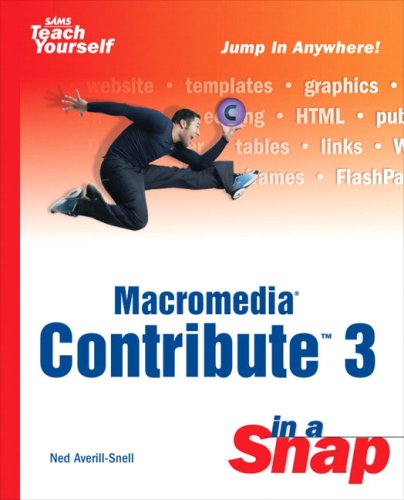
Macromedia Contribute 3 in a Snap Sams Teach Yourself 5th Edition by Ned Snell ISBN 978-0672325168 0672325168


Original price was: $50.00.$35.00Current price is: $35.00.
Macromedia Contribute 3 in a Snap Sams Teach Yourself 5th Edition by Ned Snell – Ebook PDF Instant Download/Delivery: 978-0672325168, 0672325168
Full download Macromedia Contribute 3 in a Snap Sams Teach Yourself 5th Edition after payment
Product details:
ISBN 10: 0672325168
ISBN 13: 978-0672325168
Author: Ned Snell
Whether you’re a small business owner wanting to update your website to promote a big sale next month, a student assigned to create a website for a class, or you’re curious about web design but you don’t have any HTML experience, Macromedia Contribute 3 In a Snap can help. Organized into short, bite-sized tasks, you will quickly be able to accomplish the steps required to build a website without any HTML code. You will learn how to easily update text and images to existing web pages and create new pages with the use of Macromedia Contribute 3 and more familiar programs such as Microsoft Word and Excel. Use this tool to help you create web pages in a snap!
Table of contents:
PART I: GETTING STARTED
CHAPTER 1: Start Here
CHAPTER 2: Connecting to a Web Page to Edit It
2.1 About Connections
2.2 Import a Connection Key
2.3 Locate Editable Regions
2.4 Work Offline
2.5 Delete a Connection
2.6 Disable Connections
2.7 Enable Connections
2.8 Bookmark Websites You Edit Often
PART II: EDITING THE CONTENT OF A WEB PAGE
CHAPTER 3: Editing the Content of a Web Page
3.1 About Web Page Text
3.2 Select Text
3.3 Edit and Add Text
3.4 Copy or Move Text
3.5 Insert Special Characters (Symbols)
3.6 Insert the Date
3.7 Check Spelling
3.8 Use Find and Replace
CHAPTER 4: Changing the Way Text Looks
4.1 About Text Formatting
4.2 Change the Style of Text
4.3 Make Text Bold, Italic, or Underlined
4.4 Change the Font, Size, or Color of Text
4.5 Apply a Highlight Color to Text
4.6 Align Text on the Page
4.7 Indent Paragraphs
CHAPTER 5: Editing Pictures and Movies
5.1 About Web Images
5.2 Align an Image and Choose Wrapping
5.3 Reposition an Image
5.4 Change the Size of an Image
5.5 Prepare an Image for the Web
5.6 Replace an Image
5.7 Add or Delete an Image
5.8 Add a Border or Extra Space Around a Picture
5.9 About Flash Movies
5.10 Change the Way a Flash Movie Plays
5.11 Add or Delete a Flash Movie
CHAPTER 6: Organizing Content on a Page
6.1 About Lists
6.2 Create a List
6.3 Nest Lists Inside One Another
6.4 Add or Delete a Horizontal Rule
6.5 Change the Style of a Horizontal Rule
6.6 Edit or Add Text in a Table
6.7 Edit or Add Pictures in a Table
6.8 Add or Delete Rows and Columns
6.9 Change the Dimensions of a Table
6.10 Change the Size of Rows and Columns
6.11 Align a Table on the Page
6.12 Sort Data in a Table
6.13 About Table Borders, Colors, Backgrounds, and Spacing
6.14 Choose the Border Thickness and Color
6.15 Change the Spacing Around Cell Contents
6.16 Add a Background Color to a Table
6.17 Create a New Table
CHAPTER 7: Linking to Web Pages, Files, and Email
About Links
Change Where an Existing Link Leads
Edit an Existing Link’s Text or Image
Add a New Link
Make a Linked Page Open in a New Window
Link to a Particular Spot Within a Page
PART III: CREATING NEW WEB PAGE CONTENT
CHAPTER 8: Working with New Pages
7. About New Pages
8. Copy an Existing Page to Make a New Page
9. Use a Template to Make a New Page
10. Create a New Blank Page
11. Choose a Background Color and Other General Settings
12. Use a Table to Arrange the Contents of a Page
13. Delete Pages
CHAPTER 9: Inserting Documents in Word, Excel, and Other Formats
14. About Inserting External Documents
15. Insert a Word or Excel File into a Web Page
16. Link to a Word or Excel File
17. About FlashPaper
18. Document in Any Format: Use FlashPaper to Insert a Document
CHAPTER 10: Editing Content in Pages That Are Divided Into Frames
19. About Frames
20. Edit the Content in One Frame Within a Page
21. Choose What Content Appears Within a Frame
22. Create a Link That Points to a Particular Frame
CHAPTER 11: Publishing Pages
23. About Publishing
24. Preview Your Work
25. Send Your Work to Reviewers
26. Add Keywords and Descriptions to Pages
27. Publish Edited Pages
28. Publish New Pages
29. Restore Published Pages to Their Previous Versions
PART IV: ADMINISTERING WEBSITES
CHAPTER 12: Basic Site Administration Tasks
30. About Site Administration
31. Create or Edit Connections with the Wizard
32. Become Administrator of a Website
33. Change the Administrator Email, Password, and Enabling Rollback
34. About Preferences
35. Set Preferences
36. Set Index Page Filenames
37. Choose Alternate Web Addresses
CHAPTER 13: Managing Roles and Sharing Connections
38. About Roles
39. Create a New Role
40. Set General Role Settings
41. Set Folder and File Access Role Settings
42. Set Editing Role Settings
43. Set Style and Font Role Settings
44. Choose Settings for New Web Pages
45. Set File Placement Role Settings
46. Set Shared Assets Role Settings
47. Choose Settings for New Images
48. Send Connections to Contributors
People also search for:
adobe macromedia acquisition
adobe macromedia
what is macromedia.com
macromedia promotion
macromedia community
Tags: Ned Snell, Macromedia Contribute, Snap Sams, Teach Yourself