
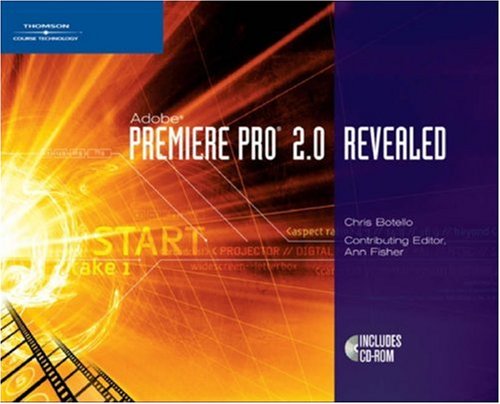
Adobe Premiere Pro 2 0 Revealed 1st Edition by Chris Botello ISBN 9781598630282 1598630282

Original price was: $50.00.$35.00Current price is: $35.00.
Adobe Premiere Pro 2 0 Revealed 1st Edition by Chris Botello – Ebook PDF Instant Download/Delivery: 9781598630282, 1598630282
Full download Adobe Premiere Pro 2 0 Revealed 1st Edition after payment
Product details:
ISBN 10: 1598630282
ISBN 13: 9781598630282
Author: Chris Botello
Digital video editing continues to grow in both the educational and at-home market and “Adobe Premiere Pro X Revealed” is perfect for anyone interested in editing video on their home computer. Written for users who have no previous experience with Premiere, the book takes them step-by-step through important video editing skills using the software. The award-winning and highly visual layout will get readers up and running quickly with the new skills they learn. A companion website features all of the data files the reader needs so they can follow along and learn each lesson hands-on.
Table of contents:
Chapter 1
Getting Started with Adobe Premiere Pro 2.0
Welcome to Premiere Pro 2.0!
LESSON 1
Explore the Premiere Pro Workspace
Exploring the Workspace
Using Default Preferences
Working in Premiere Pro
Steps: Start Adobe Premiere Pro
LESSON 2
Work in the Project Panel
Defining the Role of the Project Panel
Working in the Project Panel
Steps: Explore List View options
Explore Icon View options
Import clips into the Project panel
Chapter 2
Working with Clips
LESSON 1
Import Source Clips
Using the Import Command
Organizing the Project Panel with Bins
Assigning Label Colors to Items in the Project Panel
Steps Import files and folders
Create new bins and store clips
LESSON 2
Work with Still Images
Changing the Duration of Still Images
Working with Parameters for Frames
Setting the Aspect Ratio in Other Applications
Steps Modify the default duration of still clips
Explore frame parameters of a dip and view pixel aspect ratio of a still image
LESSON 3
Bring Clips into the Timeline
Adding Clips to the Timeline
Inserting Clips between Clips in the Timeline
Adding Clips Using the Automate to Sequence Command
Steps Add clips to the Timeline
Use the Automate to Sequence command
LESSON 4
Manipulate Clips in the Timeline
Removing Clips from the Timeline
Moving Clips within the Timeline
Steps Remove clips from the Timeline Rearrange clips in the Timeline
Chapter Summary
Chapter 3
Working with Transitions
LESSON 1
Understand Video Transitions
Working with Video Transitions
Setting the Default Video Transition
LESSON 2
Add Video Transitions to Clips in the Timeline
Using the Effects Workspace
Adding Video Transitions to Clips in the Timeline
Steps
Align a transition to the end of a clip
Aligna transition to the beginning of a clip and between two clips
Apply the default video transition using the Automate to Sequence command
LESSON 3
Modify Video Transitions
Replacing Transition Instances
Modifying Transitions
Steps Replace transitions in the Timeline
Modify video transitions in the Effect Controls panel
LESSON 4
Set the Work Area Bar and Create Previews
Generating a Preview
Setting the Work Area Bar
Steps Set the work area bar and create a preview
Chapter Summary
Chapter 4
Exploring Essential Editing Techniques
LESSON 1
Trim Video Clips
Trimming Video Clips
Setting In and Out Points in the Source Monitor Modifying Trimmed Clips in the Source Monitor Trimming Clips in the Timeline
Steps: Trim video clips in the Source Monitor Trim video clips in the Timeline
LESSON 2
Insert and Overlay Clips
Inserting Clips from the Source Monitor Overlaying Clips from the Source Monitor Working with Multiple Video Tracks Using the Razor Tool
Steps: Insert clips from the Source Monitor Overlay clips in the Timeline Work with multiple video tracks
LESSONS
Perform a Ripple Edit and a Rolling Edit
Using the Ripple Edit Tool Performing a Rolling Edit
Steps: Perform a ripple edit Perform a rolling edit
Chapter Summary
Chapter 5 Working with Audio
LESSON 1
Investigate Audio Clip Properties
Understanding Properties of Audio Clips
Working with Audio Clips in the Timeline
Steps: Workwithan audio clip
LESSON 2
Extract Audio
Working with Audio Clips
Previewing Audio Clips
Trimming Audio Clips
Extract One or Multiple Segments from an Audio Clip
Trimming Audio Clips in the Timeline
Steps: Preview and trim an audio clip in the Source Monitor Trim an audio clip in the Timeline
LESSON 3
Unlink Audio from Video and Adjust Volume
Working with Linked Audio and Video Using the Toggle Take Audio and Video Button
Adjusting the Volume of Audio Clips and Audio Tracks
Steps: Work with linked audio and video clips
LESSON 4
Apply and Modify Audio Effects
Applying Audio Effects Working with the Highpass and Lowpass Audio Effects
Steps: Apply the Lowpass audio effect Apply the Reverb audio effect
Chapter Summary
Chapter 6
Exploring Advanced Editing Techniques
LESSON 1
Edit Using Marker Menu Options
Using Markers
Nudging Clips in the Timeline
Steps Set markers and align clips using markers Create an edit using markers
LESSON 2
Use the Extract and Lift Buttons
Using the Extract Button
Using the Lift Button
Steps. Use the Lift button
Use the Extract button
LESSON 3
Change a Clip’s Rate
Creating Slow-Motion and Fast-Motion Effects
Steps Create a slow-motion effect Create a fast-motion effect
LESSON 4
Use the Slide and Slip Tools
Using the Slide Tool
Using the Slip Tool
Steps. Use the Slide Tool
Use the Slip Tool
LESSON 5
Work in the Trim Monitor
Editing in the Trim Monitor
Steps: Synchronize and edit clips in the Trim Monitor Perform an interactive rolling edit in the Trim View
Chapter Summary
Chapter 7
Working with Titles
LESSON 1
Create and Use Titles
Working with Title Designer
Creating Text in Title Designer
Showing Video in the Title Designer Window
Sampling Colors with the Eyedropper Tool
Adding Shadows to Text and Objects
Creating and Applying Styles
Understanding Title Window Transparency
Understanding Safe Title and Safe Action Margins
Steps Create text in life Designer
Add title clips to the Timeline
Create a drop shadow and a new style
LESSON 2
Create Graphics in Title Designer
Creating Graphics
Understanding Opacity
Creating Gradients
Arranging Objects in Title Designer
Steps: Create a shape
Adjust opacity and create a gradient
LESSON 3
Insert Logos into Title Designer
Inserting Logos
Steps Insert logo into a title
Chapter Summary
Chapter 8
Working with Video Effects
LESSON 1
Work with Video Effects
Working with the Effects Panel
Applying Video Effects
Modifying Video Effects
Applying the Emboss Effect
Modifying an Embossed Clip with the Levels Effect
Modifying the Opacity of a Clip
Steps: Apply video effects
Modify video effects
Apply the Emboss effect and rename tracks
Modify an embossed clip with the Levels effect
LESSON 2
Use Advanced Video Effect Techniques
Understanding the Tint Effect
Changing the Order of Applied Effects
Understanding the Color Replace Effect
Copying Effects between Clips
Changing Video Effect Settings in the Timeline
Steps: Apply the Tint effect
Change the order of applied effects
Use the Color Replace effect
Copy video effects between clips
LESSONS
Use Keying Effects
Understanding Transparency Keys
Making Clips Transparent
Using Keys
Using the Multiply Key Effect
Using the Garbage Matte Effect
Steps: Use the Multiply Key effect
Make a white background transparent
Chapter Summary
Chapter 9
Animating Clips
LESSON 1
Animate a Clip Using Keyframes
Identifying the Role of Animation Identifying Properties to Animate
Adding Keyframes to a Clip
Steps: Add keyframes to a clip Animate tuo properties of a clip
LESSON 2
Modify Keyframes
Modifying Keyframes
Copying and Pasting Keyframes
Steps: Adjust keyframe locations Copy and paste a keyframe
LESSON 3
Animate a Video Effect
Working with Keyframes and Video Effects Using Presets
Steps: Animate a video effect using keyframes Use a preset to animate a video effect
Chapter Summary
Chapter 10
Exploring Export Options
LESSON 1
Export a Movie and a Frame
Exporting a Movie
Exporting a Frame
Steps: Exporta movie Export a frame
LESSON 2
Export an Edit Decision List
Exporting an Edit Decision List
Steps: Export to an EDL
LESSON 3
Export a Filmstrip
Exporting a Filmstrip
Steps Export a Filmstrip
Chapter Summary
People also search for:
adobe premiere pro free trial
adobe premiere pro login
adobe premiere pro cost
adobe premiere pro tutorial
adobe premiere pro free reddit
Tags: Chris Botello, Adobe Premiere Pro