
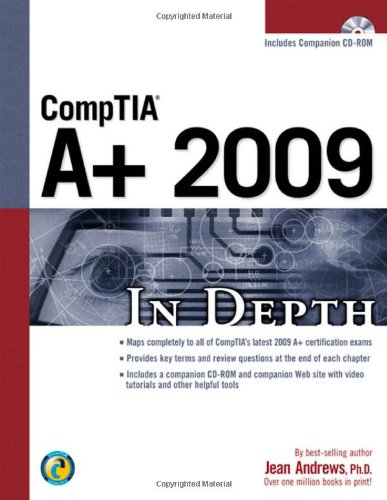
CompTIA A 2009 In Depth 3rd Edition by Jean Andrews ISBN 978-1435454897 1435454897


Original price was: $50.00.$35.00Current price is: $35.00.
CompTIA A 2009 In Depth 3rd Edition by Jean Andrews – Ebook PDF Instant Download/Delivery: 978-1435454897, 1435454897
Full download CompTIA A 2009 In Depth 3rd Edition after payment
Product details:
ISBN 10: 1435454897
ISBN 13: 978-1435454897
Author: Jean Andrews
This comprehensive certification solution not only provides thorough preparation for CompTIA’s A+ 2009 certification but also provides you with real-world instruction on everything you need to know to support and troubleshoot computer hardware and software. Updated to include the most current technologies, with a new chapter on securing your PC and small network, CompTIA A+ 2009 In Depth takes you from the just-a-user level to the I-can-fix-this level on all PC hardware and software matters. Coverage is balanced. While focusing on new hardware and software, the text also covers the real work of PC repair, where some older technology remains in widespread use and still needs support. This new edition also has increased focus on Windows Vista and XP, organized by function (such as installing, maintaining, optimizing, and fixing). All the content that relates to CompTIA’s A+ 2009 Essentials 220-701 and Practical Application 220-702 certification exams is highlighted with an A+ icon that denotes the exam name and the objective number that the content refers to. In addition, this revised version includes substantial content updates for currency, in order to keep pace with the latest technology, both hardware and software. CompTIA A+ 2009 In Depth is a text you’ll be sure to refer to again and again, long after you’ve passed the exam.
Table of contents:
CHAPTER 1
Introducing Hardware
Hardware Needs Software to Work
PC Hardware Components
Hardware Used for Input and Output
Hardware Inside the Computer Case
The Motherboard
The Processor and the Chipset
Storage Devices.
Motherboard Components Used for Communication Among Devices
Expansion Cards
The Electrical System
Instructions Stored on the Motherboard and
Other Boards
CHAPTER 2
Introducing Operating Systems
Operating Systems Past and Present
DOS (Disk Operating System)
DOS with Windows 3.x
Windows 9X/Me
Windows NT
Windows 2000
Windows XP
Windows Vista
Windows 7
MacOS
Linux
How Windows 2000/XP/Vista Works
What an Operating System Does
Components of Windows
How Windows Manages Applications
How Windows Manages Hardware
How Many Bits at a Time?
Using Windows 2000/XP/Vista
The Windows Vista Desktop
Differences between the Windows
XP/2000
desktop and the Vista desktop
Windows Explorer and the Computer
Window
The Control Panel
System Information Utility
Command Prompt Window
CHAPTER 3
Working with People in a Technical World
Job Roles and Responsibilities
Certification and Professional Organizations
Record-keeping and Information Tools
What Customers Want: Beyond Technical
Know-how
Planning for Good Service
Initial Contact with a Customer
Interview the Customer
Set and Meet Customer Expectations
Working with a Customer on Site
Working with a Customer on the Phone
Dealing with Difficult Customers
The Customer Decides When the Work is
Done
Sometimes You Must Escalate a Problem
The Job Isn’t Finished Until the Paperwork
is Done
Working with Coworkers
CHAPTER 4
Form Factors, Power Supplies, and Working Inside a Computer
Form Factors Used by Computer Cases,
Motherboards, and Power Supplies
Types of Form Factors
Types of Computer Cases
Measures and Properties of Electricity
AC and DC
Hot, Neutral, and Ground
Some Common Electronic Components
Selecting a Power Supply.
Types and Characteristics of Power Supplies
How to Select a Power Supply
Protect Yourself and the Equipment Against Electrical Dangers
Protect Yourself Against Electrical Shock and Burns
Protect the Equipment Against Static Electricity or ESD
Protect Against Electromagnetic Interference
Surge Protection and Battery Backup
How to Work Inside a Computer Case
PC Support Technician Tools
Safety Precautions
Steps to Take Apart a Computer
Steps to Put a Computer Back Together
Troubleshooting the Electrical System
Problems with External Power
Problems with Loose Internal Connections
Problems That Come and Go
Problems with an Inadequate Power Supply
Problems with a Faulty Power Supply
Problems with the Power Supply Fans
Problems with Overheating
Power Problems with the Motherboard
Replacing the Power Supply
CHAPTER 5
All About Motherboards
Motherboard Types and Features
Motherboard Form Factors
Processor Sockets
The Chipset
Buses and Expansion Slots
On-Board Ports and Connectors
Hardware Configuration
How to Select a Motherboard
How Startup BIOS Controls the Boot Process
Booting a Computer
Choosing Between a Hard Boot and a
Soft Boot
The Startup BIOS Controls the Beginning of the Boot
Step 1: POST and Assignment of System Resources
Step 2: Startup BIOS Finds and Loads
the OS
Maintaining, Installing, and Configuring a Motherboard
Maintaining a Motherboard
Installing or Replacing a Motherboard
Configuring the Motherboard Using BIOS
Setup
CHAPTER 6
Supporting Processors
Types and Characteristics of Processors
How a Processor Works
Intel Processors.
AMD Processors
Cooling Methods and Devices
Coolers, Fans, and Heat Sinks
Case Fans and Other Fans and Heat Sinks.
Liquid Cooling Systems
Dealing with Dust
Selecting and Installing a Processor
Select a Processor to Match System Needs
Install a Processor
BIOS Power Management Settings for the Processor
Troubleshooting the Motherboard and
Processor
Problems with Installations
Problems with the Motherboard or Processor
Problems with Overheating
Boot Problems Before the Operating System
Loads
CHAPTER 7
Upgrading Memory
Memory Technologies
DIMM Technologies
Rimm Technologies
SIMM Technologies
Memory Technologies and Memory
Performance
How to Upgrade Memory
How Much Memory Do I Need, and How Much Is Currently Installed?
How Many and What Kind of Memory Modules Are Currently Installed?
How Many and What Kind of Modules Can
Fit on My Motherboard?
How Do I Select and Purchase the Right
Memory Modules?
How Do I Install the New Modules?
Troubleshooting Memory
Upgrade Problems
Recurring Problems
CHAPTER 8
Supporting Hard Drives
Inside a Hard Drive
Solid State, Magnetic, and Hybrid Drives
How Data Is Organized on a Hard Drive
Hard Drive Interface Standards
The ATA Interface Standards
SCSI Technology
RAID: Hard Drives Working Together
About Floppy Drives
Floppy Drive Hardware
Floppy Drive File System
How to Select and Install Hard Drives and
Floppy Drives
Selecting a Hard Drive
steps to Install a Serial ATA Drive
Steps to Configure and Install a Parallel
ATA Drive
Installing a Hard Drive in a Wide Bay
How to Implement Hardware RAID
Steps to Install a Floppy Drive
Troubleshooting Hard Drives
Problems with Hard Drive Installations
How to Approach a Hard Drive Problem After
the Installation
Boot Problems Caused by Hard Drive
Hardware
Troubleshooting Floppy Drives and Disks
CHAPTER 9
Installing and Supporting 1/0
Devices
Basic Principles to Support I/O Devices
Types and Features of I/O Devices
I/O Ports on the Motherboard
Display Devices
Expansion Cards
Installing Input Devices
How to Install a Keyboard and Mouse
How to Install a Touch Screen
How to Install a Barcode Reader
How to Install a Fingerprint Reader
How to Install a KVM Switch
Installing and Configuring I/O Devices and
Ports
Using Device Manager
Using Ports on the Motherboard
Installing and Configuring Adapter Cards
Troubleshooting I/O Devices
Troubleshooting Motherboard I/O Ports
Troubleshooting Keyboards
Troubleshooting Monitors and Video Cards
Troubleshooting Other Adapter Cards
CHAPTER 10
Multimedia Devices and Mass
Storage
Multimedia Adapter Cards
Sound Cards and Onboard Sound
TV Tuner and Video Capture Cards
Optical Storage Technology
How Data Is Read and Written to Optical Discs
How Much Data Can Be Stored on Optical
Discs.
Standards Supported by CD, DVD, and
BD Drives
Features of Optical Drives
Caring for Optical Drives and Discs
Removable Storage
Solid-State Storage
External Hard Drives
Tape Drives
Install and Configure Multimedia Peripherals
Installing Digital Cameras
Installing Webcams and Microphones
Installing MIDI Devices
Install and Configure Multimedia and Mass
Storage Devices
Installing a Media Reader
Installing an Optical Drive
Installing an External Hard Drive
Installing a Capture Card
Troubleshooting Multimedia Devices
Problems with Optical Drives
Problems When Burning a CD, DVD, or BD
Problems with Removable Storage Devices
Problems with Capture Cards
CHAPTER 11
PC Maintenance and Troubleshooting Strategies
Operational Procedures When Supporting Personal Computers
Stay Safe and Keep Others Safe
Physically Protect Your Equipment
How to Dispose of Used Equipment
How to Move Computer Equipment
Protecting Software Copyrights
Personal Computer Preventive Maintenance
Set Up a Method of Documentation
Create a Preventive Maintenance Plan
How to Troubleshoot a PC Problem
Step 1: Interview the User and Back Up Data
Step 2: Examine the System and Make Your
Best Guess
Step 3: Test Your Theory
Step 4: Plan Your Solution and Then Fix
the Problem
Step 5: Verify the Fix and Take Preventive
Action
Step 6: Document What Happened
CHAPTER 12
Installing Windows
How to Plan a Windows Installation
Choose the Version of Windows.
Choose the Method of Installation
Choose the Type of Installation: Upgrade,
Clean Install, or Dual Boot
Understand the Choices You’ll Make During
the Installation
Final Checklist Before Beginning the Installation
How to Install Windows Vista
Performing a Vista In-Place Upgrade
Performing a Clean Install or Dual Boot
Performing a Clean Install Using the
Vista Upgrade DVD
What to Do After the Vista Installation
How to Install Windows XP
Windows XP Clean Install When an OS Is No
Already Installed
Windows XP Clean Install When an OS Is
Already Installed
Upgrade to Windows XP
Dual Boot Using Windows XP
What to Do After the XP Installation
How to Install Windows 2000
Clean Installation of Windows 2000
Clean Install of Windows 2000 When an OS
Is Already Installed
CHAPTER 13
Maintaining Windows
Scheduled Preventive Maintenance
Verify Critical Windows Settings
Clean Up the Hard Drive
Defrag the Hard Drive
Check the Hard Drive for Errors
Verify Startup Programs
Free Up Additional Hard Drive Space
Backup Procedures
Planning for Disaster Recovery
Back Up User Data
Back Up System Files
Back Up the Entire Hard Drive
Managing Files, Folders, and Hard Drives
Directory Structures
Commands to Manage Files and Folders
Use Disk Management to Manage Hard
Drives
Regional and Language Settings
CHAPTER 14
Optimizing Windows
Windows Utilities and Tools to Support
the OS
Task Manager
System Configuration Utility (MSconfig)
Services Console
Computer Management
Microsoft Management Console (MMC)
Event Viewer
Reliability and Performance Monitor
The Registry Editor
Improving Windows Performance
Step 1: Perform Routine Maintenance
Step 2: Check If the Hardware Can Support the OS
Step 3: Check for Performance Warnings
Step 4: Check the Reliability Monitor
Step 5: Disable the Indexer for Windows Search
Step 6: Disable the Vista Aero Interface
Step 7: Disable the Vista Sidebar.
Step 8: Plug Up Any Memory Leaks
Step 9: Consider Disabling the Vista UAC
Box
Step 10: Consider Using Vista ReadyBoost
Step 11: Clean Windows Startup
How to Manually Remove Software
Monitor the Startup Process
CHAPTER 15
Tools for Solving Windows Problems..
Tools to Help with Blue Screen Errors, System
LockUps, and I/O Device Errors
Vista Tools for Solving Startup Problems
Files Needed to Start Windows Vista
Steps to Start a Vista Computer
Advanced Boot Options Menu
The Windows Recovery Environment (Windows RE)
The Command Prompt Window in
Windows RE
Windows 2000/XP Tools for Solving Startup
Problems
What Happens When Windows 2000/XP
Starts Up
Files Needed to Start Windows 2000/XP
Advanced Options Menu.
Windows 2000/XP Boot Disk
Recovery Console
Windows 2000 Emergency Repair Process
CHAPTER 16
Fixing Windows Problems
Fixing Problems Caused by Hardware.
Fixing Problems Caused by Applications
Troubleshooting Vista Startup
Problems at Stage 1: Before the Progress
Bar Appears
Problems at Stage 2: After the Progress
Bar Appears and Before Logon
Problems at Stage 3: After Windows Logon.
How to Recover Lost Data
Troubleshooting Windows 2000/XP Startup
CHAPTER 17
Networking Essentials
Networking Technologies
Broadband Technologies
Wireless Technologies
Dial-Up Technology
Internet Access When You Travel
Hardware Used by Local Networks
Networking Adapters and Ports.
Cables and Connectors
Hubs and Switches
Wireless Access Points
Routers
Windows on a Network
Layers of Network Communication
Understanding IP Addresses and How They
Are Used
Character-Based Names Identify Computers and Networks.
TCP/IP Protocol Layers
Ping, Ipconfig, and Telnet
Virtual Private Networks
How to Connect a Computer to a Network
Connect to a Network Using an Ethernet
Connection
Connect to a Network Using a Wireless
Connection
CHAPTER 18
Networking Practices
Connecting to the Internet
Modem
Connect to the Internet Using Cable
Connect to the Internet Using DSL
Connect to the Internet Using an On-
Demand Broadband Connection or Static
IP Addressing.
Connect to the Internet Using Satellite
Connect to the Internet Using a Dial-Up
Connection
Connect to the Internet Using ISDN
Implement Windows Firewall and Vista
Network Security
Setting Up a SOHO Network
Physically Configure a Small Network
Install and Configure a Router for a Small
Network
How to Set Up a Wireless Network
Tools and Utilities for Supporting and
Troubleshooting Networks..
Cable Testers
TCP/IP Utilities
Remote Desktop
Remote Assistance
Troubleshooting Network and Internet
Connections
Problems with Hardware and Device
Drivers
Problems with TCP/IP, the OS, and ISP
Connectivity
Problems with Client-Side Applications
CHAPTER 19
Security Essentials
Comply with Security Policies
Controlling Access to Secured Resources
Authenticate Users
Classify Users and Data
Sharing Files and Folders
Additional Methods to Protect Resources
Security Devices to Protect Data and Computers
Encryption Techniques
Use BIOS Features to Protect the System
Lock a Workstation
Protect Against Malicious Software
Educate Users
Perform Routine Security Maintenance
CHAPTER 20
Security Practices
Controlling Access to Computer Resources
Controlling Access to Data Folders and
Files
Hidden Network Resources and Administrative
Shares
Encrypting Files and Folders
Using Bitlocker Encryption
Supporting BIOS Security Features That
Affect Access Control
Dealing with Malicious Software
Malware Symptoms
Strategies for Dealing with Malware
Step-by-Step Attack Plan
Protect a System Against Malicious
Software
CHAPTER 21
Supporting Notebooks
Special Considerations When Supporting
Notebooks
Warranty Concerns
Service Manuals and Other Sources of Information
Diagnostic Tools Provided by
Manufacturers
The OEM Operating System Build
Caring for Notebooks
Supporting Notebook Peripheral Devices
Port Replicators and Docking Stations
PC Card, CardBus, and ExpressCard Slots
Using Bluetooth, Cellular, and Wi-Fi
Connections
Power and Electrical Devices
Power Management
Input Devices
Video
Troubleshooting, Replacing, and Upgrading
Internal Parts
Three Approaches to Dealing with a
Broken Internal Device
Upgrading Memory
Replacing a Hard Drive
Disassembling and Reassembling a
Notebook Computer
CHAPTER 22
Supporting Printers
Printer Types and Features
Types of Printers
Printer Features.
Installing and Sharing Printers
How to Install a Printer Using Vista.
How to Install a Local Printer Using
Windows XP
Steps to Install a Network Printer Using
Windows XP
Manage Printer Features and Settings
Share an Installed Printer.
How to Use a Shared Printer
Supporting Printers
Printer Languages
Using Windows to Manage Printers
Printer Consumables
Maintaining Printers
Printer Maintenance Kits
Upgrade the Printer Memory or Hard
Drive.
Cleaning a Printer
Online Support for Printers
Updating Printer Firmware
Troubleshooting Printers
Printer Does Not Print
Problems with Laser Printers
Problems with Inkjet Printers
Problems with Impact Printers
People also search for:
a comptia
is comptia a worth it 2022
comptia a+ 3.2
comptia a core 2 study guide pdf
comptia a+ 1.1
Tags: Jean Andrews, CompTIA A 2009, In Depth